Settings
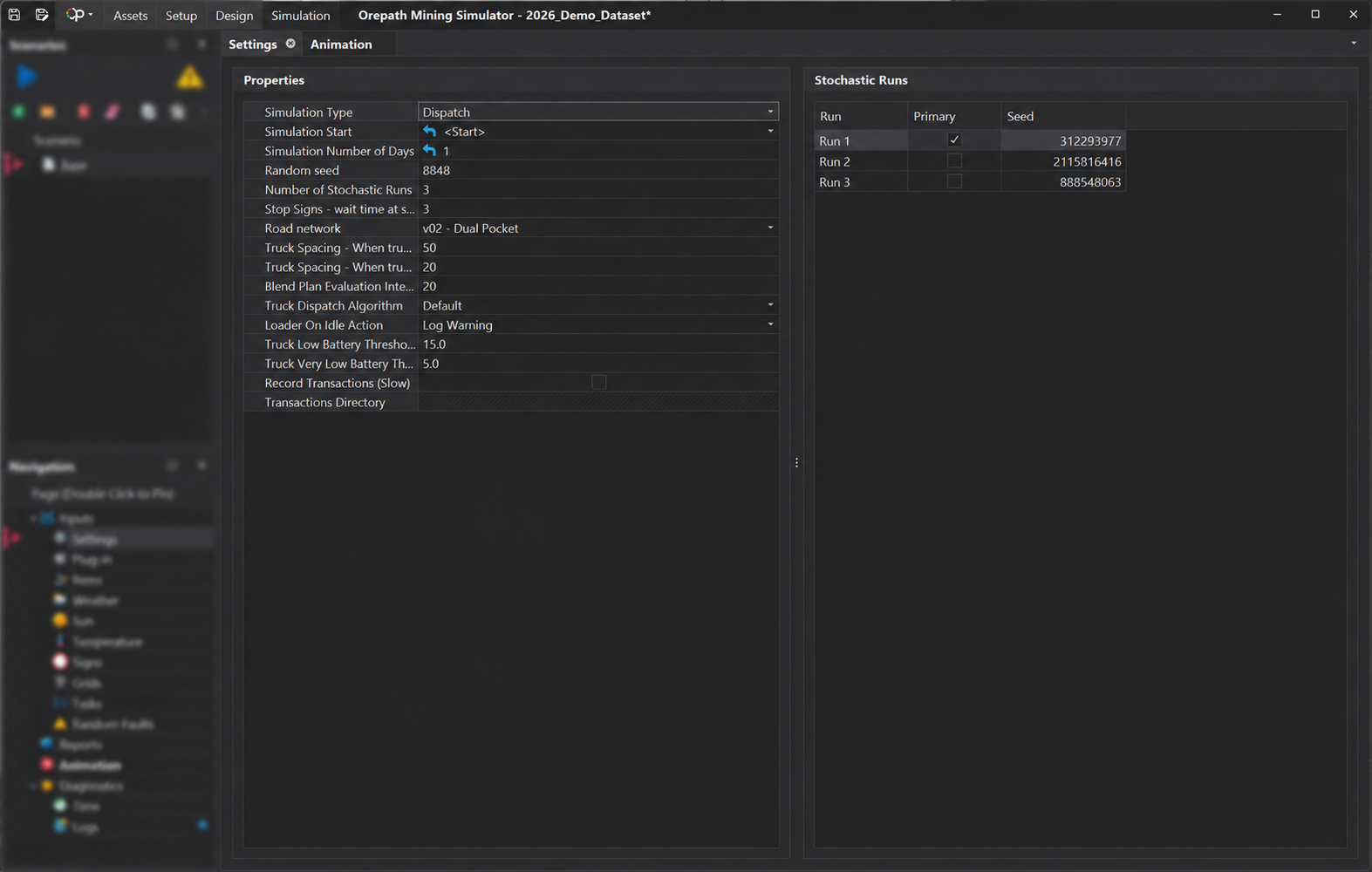
The Settings tab, contains several key parameters for the selected simulation scenario. These parameters are detailed in the table below.
| Property | Description |
|---|---|
| Simulation Start | This specifies the start date and time for the simulation. By default, the value is set to Start, corresponding to the beginning of the first period. If the value is changed, clicking the blue arrow will revert it back to the default setting. |
| Simulation Number of Days | The number of days to simulate. By default, the value is set to End, which represents the date and time of the last period. If the value is modified, clicking the blue arrow will reset it to the default. |
| Random Seed | The software incorporates randomness throughout, such as when selecting values from probability distributions and modeling unplanned downtime. A random seed is used to generate these values during the simulation. With the same inputs, using the same seed will produce identical outputs each time the simulation runs. However, using a different seed with the same inputs will result in different outputs. When a new scenario is created, a random seen value will automatically be generated. |
| Number of Stochastic Runs | Runs the simulation multiple times using different random seed values. This helps compare different possible outcomes and gives a more reliable average result. The N runs generated from this setting are shown in the list on the right, with the following properties: Run: Shows each simulation run number, such as Run 1, Run 2, Run 3, and so on. Primary: Indicates which run is selected as the main run for the animation and reporting. Seed: A random number used to generate variation in the simulation. Different seeds can produce slightly different simulation results. The seed for each run cannot be changed here; it is derived from the main project seed in the Random Seed field in the Simulation Settings above. |
| Stop Signs - Wait time at sign | The duration for which a vehicle remains stationary at a stop sign before being allowed to continue its journey. |
| Road Network | The road network to use in the simulation run. |
| Truck Spacing - When truck in front is moving | The distance a truck must maintain behind a moving truck in front. |
| Truck Spacing - When truck in front is stopped | The distance a truck must maintain behind a stationary truck in front. |
| Simulation Type | Determines how tasks are defined and managed during the simulation. Select Schedule to define tasks using the schedule-based method or select Dispatch to define tasks using the dispatch-based method. The selected simulation type controls which task configuration approach is available for the scenario. |
| Blend Plan Evaluation Interval | Defines how often the simulation evaluates the blend plan during the run. A smaller interval checks the blend plan more frequently, while a larger interval checks it less often. (Only available when dispatch method selected) |
| Loader On Idle Action | Defines what action the software should take when a loader becomes idle. For example, it may log a warning if the loader is waiting and not currently loading trucks. |
| Truck Low Battery Threshold | Sets the battery percentage at which a truck is considered to have a low battery. |
| Truck Very Low Battery Threshold | Sets the battery percentage used to classify a truck as having a very low battery for reporting purposes. This value is used in the truck battery-charge-level reporting dimension to categorise battery status. It represents a more critical battery condition than the Truck Low Battery Threshold. |
| Record Transactions (Slow) | Records detailed transaction data during the simulation. This can provide more detailed results but may slow down the simulation. |
| Transactions Directory | Specifies the folder location where recorded transaction files will be saved. |